

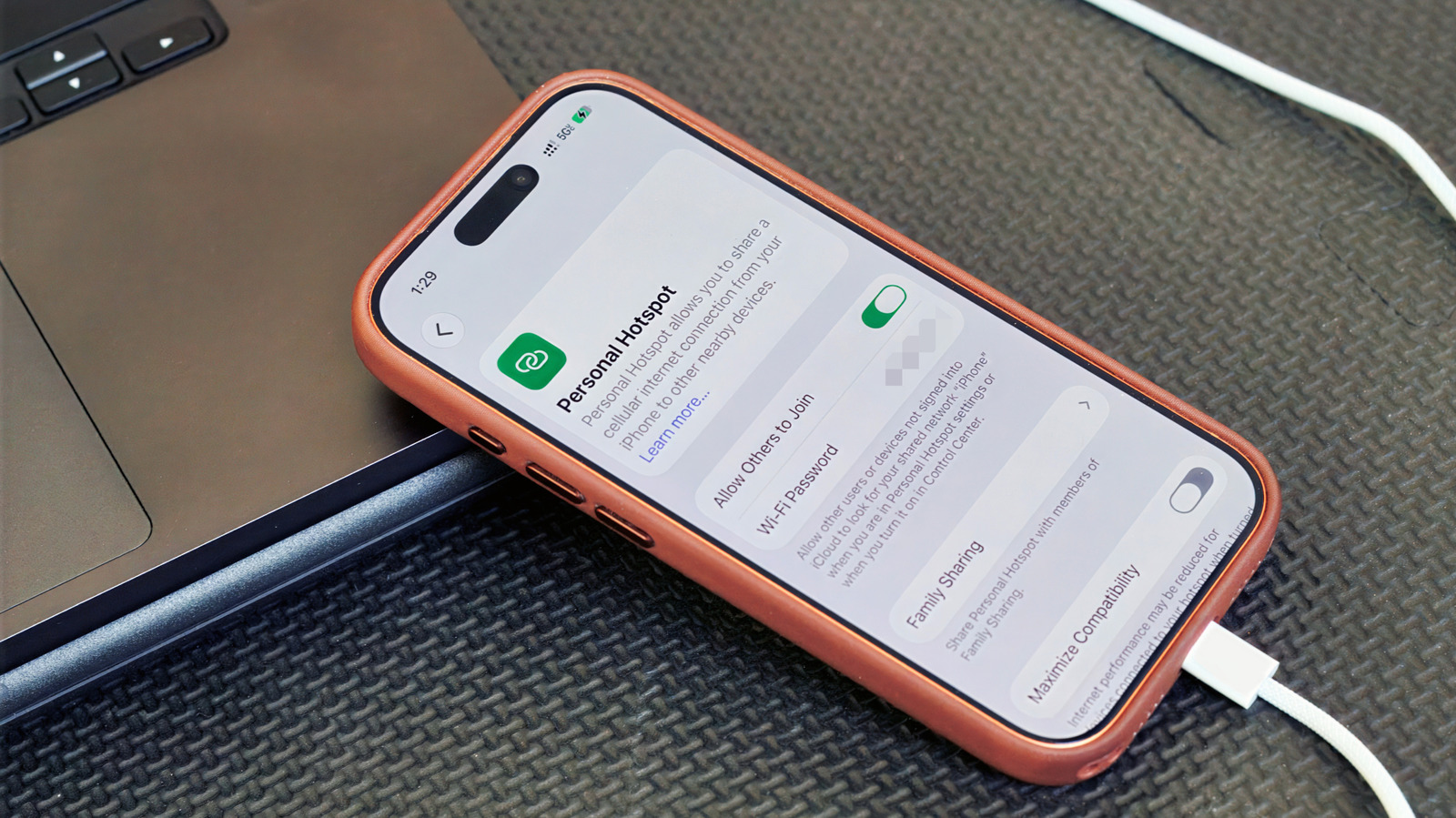

There are times when a physical connection works better. Here’s how to set it up.
Will Shanklin for Engadget
When you think of using a smartphone as a mobile hotspot, the wireless version is probably what comes to mind. But there’s also USB tethering, which lets you share your phone’s cellular connection with a computer over a cable. Here’s how it works, what it’s good for and how to set it up.
Why USB tethering?
For most people, a wireless hotspot is still the easiest way to get a laptop online when you’re away from regular Wi-Fi. It’s more flexible, supporting multiple simultaneous connections. And unlike the USB kind, you’re free to move your phone away from the computer.
But there are some cases where USB tethering could make sense. A wired connection can be more stable, which is handy for crowded places like convention centers or airports. It also means you aren’t broadcasting a visible network in public. As a bonus, your phone might charge while it’s connected.
How to set up USB tethering
Screenshot by Will Shanklin (Samsung)
Before we dive in, note that there’s one big catch: Android phones can’t tether via USB to a Mac. (You can still use a Wi-Fi hotspot instead.) Otherwise, USB tethering works with other phone-to-computer setups, including Android to Windows and iPhone to Mac or Windows.
If you’re tethering from an iPhone to Windows, you may need to install the Apple Devices app or iTunes for Windows from the Microsoft Store.
On Android:
Connect your phone to a Windows PC using a USB cable.
On your phone, navigate to Settings > Network & internet > Hotspot & tethering. (On some devices, it’s under Settings > Connections > Hotspot & tethering.) You can also swipe down to open Quick Settings, then press and hold Hotspot to jump to the tethering menu.
Toggle on USB tethering. If the option is grayed out, make sure you’re using a data-capable USB cable and not a charge-only one.
On iPhone:
Plug your iPhone into a computer using a USB cable.
You may see authentication prompts. If your iPhone asks whether to trust the computer, tap Trust and enter your passcode. If you’re connecting to a Mac and see an “Allow accessory to connect” prompt on your computer, click Allow.
On your iPhone, go to Settings > Personal Hotspot. (If you’ve never used a hotspot before, you may need to start under Settings > Cellular > Set up Personal Hotspot.)
Turn on Allow Others to Join.
A few things to keep in mind
USB tethering usually makes more sense for one device than as a full hotspot replacement. So, for example, if you’re trying to get both your laptop and tablet online at the same time, a Wi-Fi hotspot is the solution.
Keep in mind that laptops can burn through data with background tasks like updates and cloud syncing. Your carrier may also limit hotspot use, charge extra for it, count it against a separate data allowance or not support it at all. So it’s worth checking your plan before tethering over USB or Wi-Fi.
And while a wired connection can be more stable than a wireless hotspot, it’s still relying on your phone’s cellular signal. Spotty service will still mean spotty internet, no matter how you connect.